
WordPress Integration
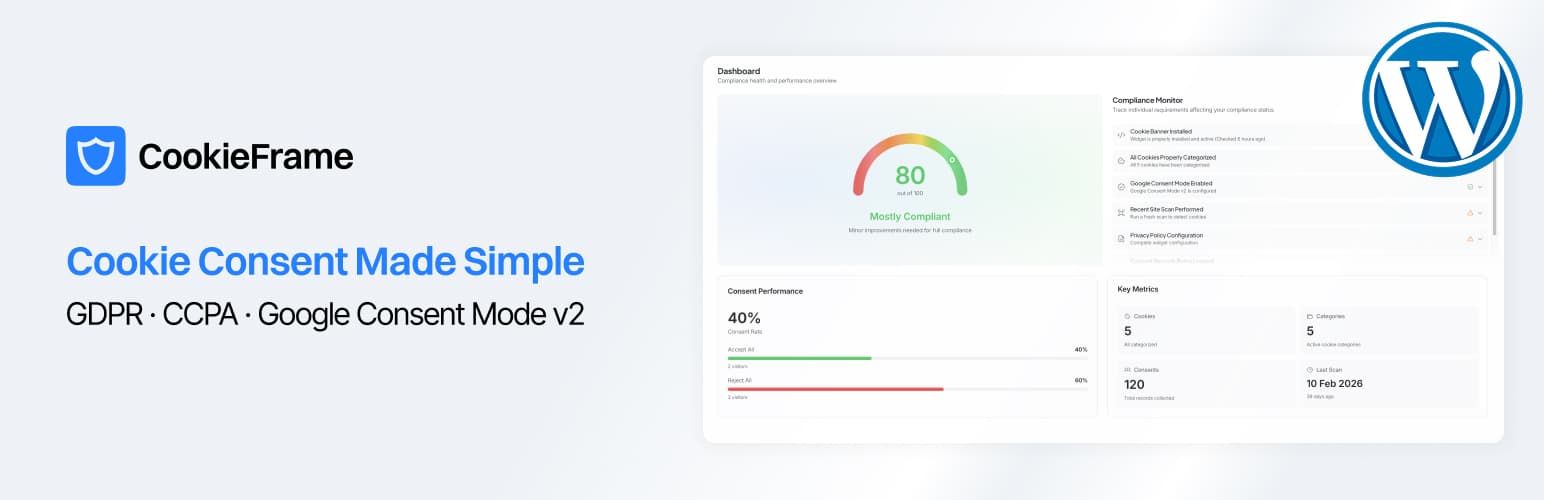
The CookieFrame WordPress plugin adds a cookie consent banner to your site with zero coding. It automatically injects the widget script, integrates with the WordPress Consent API, and provides shortcodes for cookie preference links.
Prerequisites
Before you begin, make sure you have:
- WordPress 6.0 or later
- PHP 7.4 or later
- Admin access to your WordPress site
You do not need a CookieFrame account before installing — you can create one directly from the plugin.
Installation
From WordPress Plugin Directory
- In your WordPress admin, go to Plugins > Add New
- Search for "CookieFrame"
- Click Install Now, then Activate
Manual Upload
- Download the plugin zip file
- In your WordPress admin, go to Plugins > Add New > Upload Plugin
- Select the zip file and click Install Now
- Click Activate Plugin
Connecting Your Site
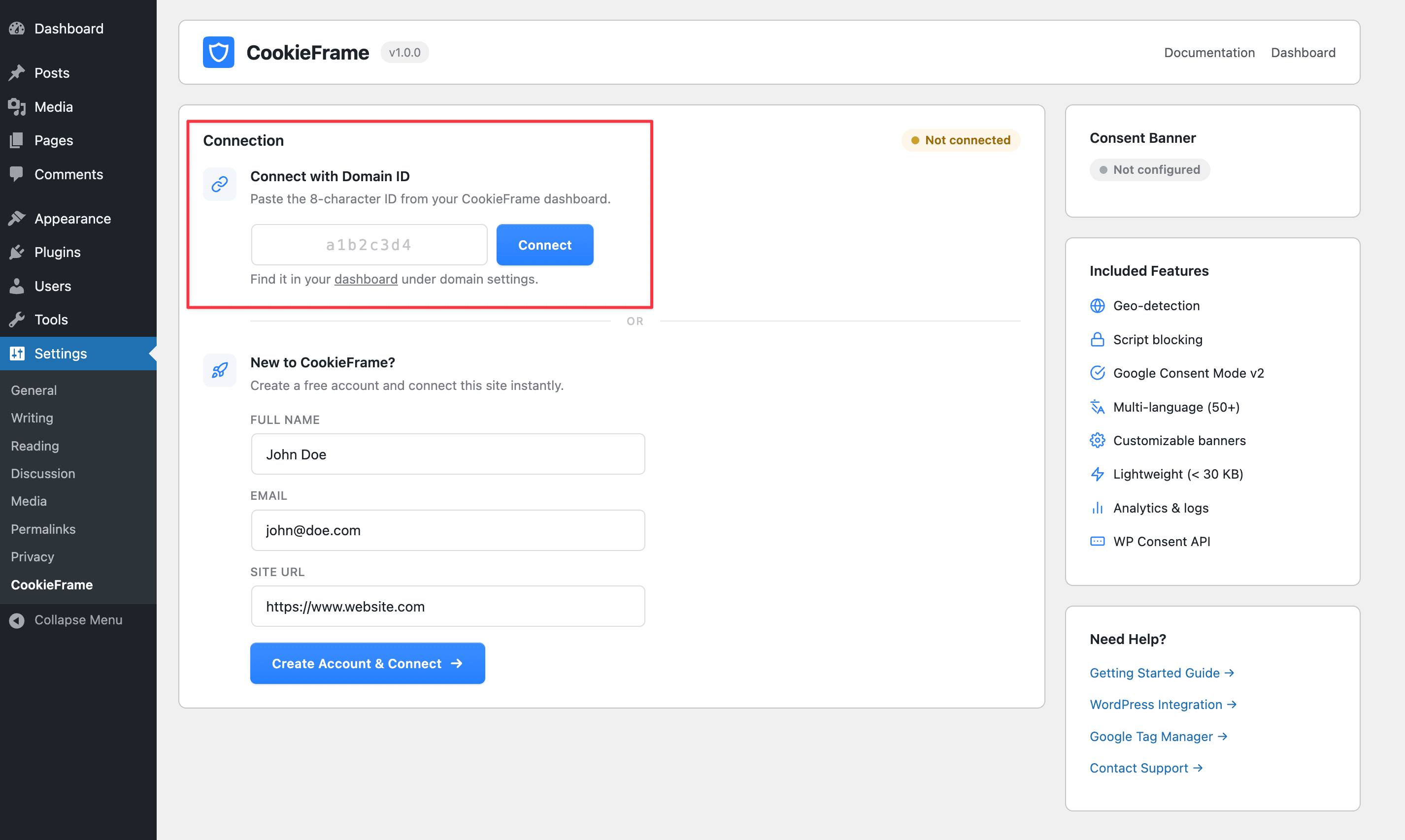
After activation, go to Settings > CookieFrame. You have two ways to connect:
Option A: Create a New Account
If you're new to CookieFrame:
- Under New to CookieFrame?, fill in your name and email — your site URL is pre-filled automatically
- Click Create Account & Connect
- Your domain is created and connected instantly
- Check your email to verify your account
Option B: Use an Existing Domain ID
If you already have a CookieFrame account:
- Log in to your CookieFrame Dashboard
- Select your domain and find your 8-character Domain ID in Settings > Integration
- Enter the Domain ID in the plugin settings
- Click Connect
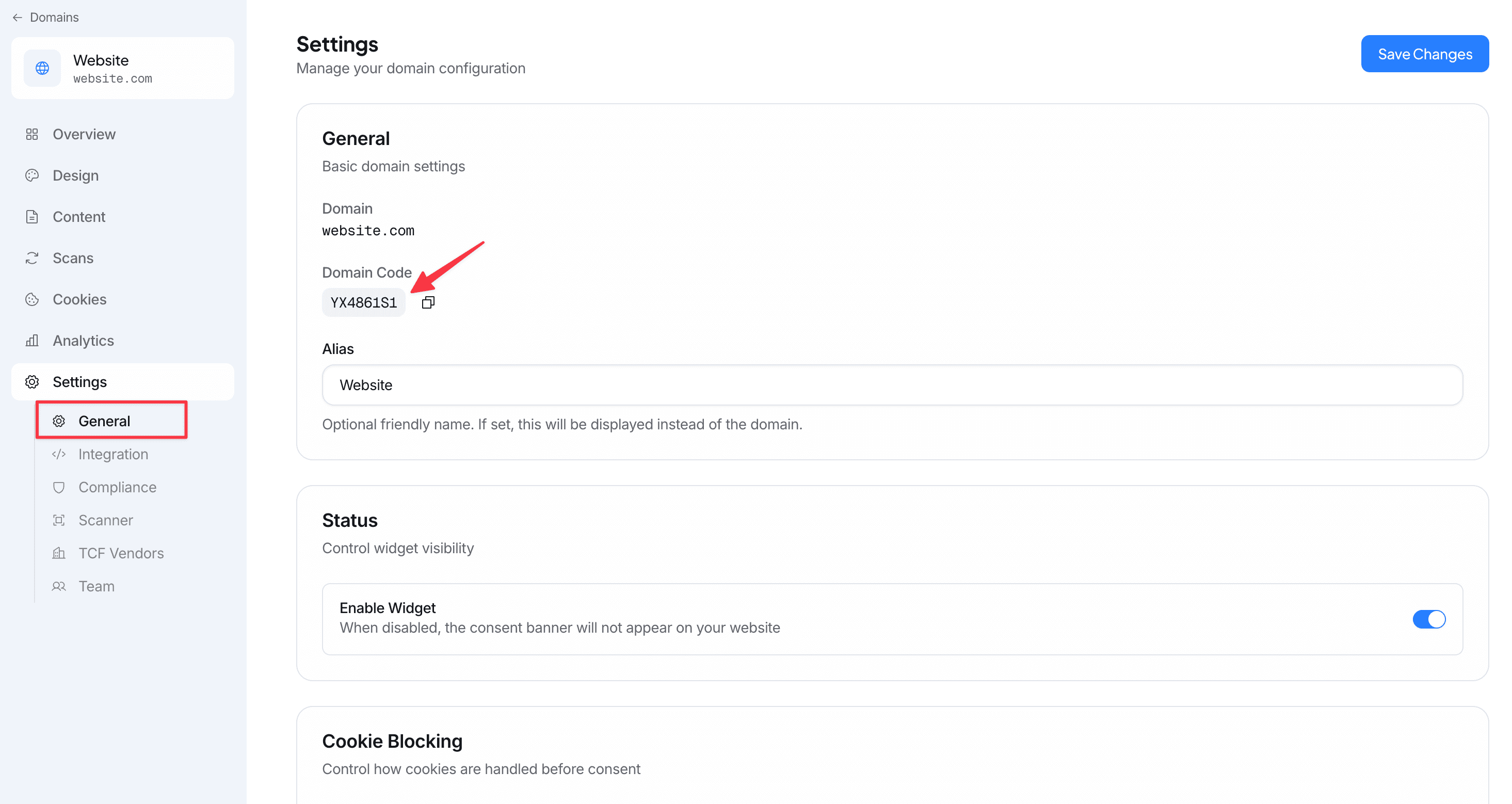
Then paste it in the plugin settings page:
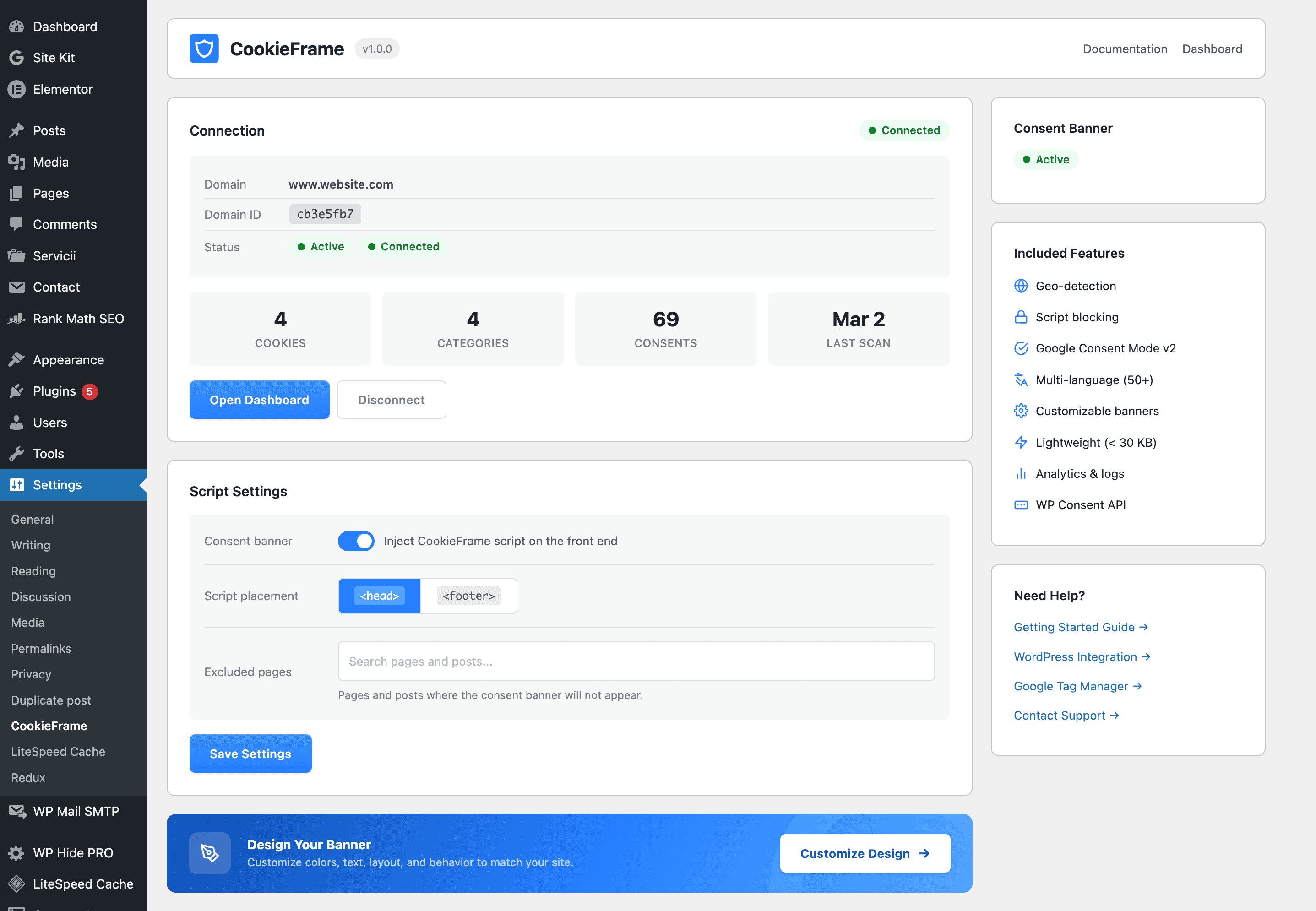
Once connected, the consent banner is live on your site.
Settings
Script Position
Choose where the widget script is injected:
| Position | When to Use |
|---|---|
| Head (default) | Recommended. Loads earliest, ensures consent is established before other scripts. |
| Footer | Use if you have specific performance requirements or conflicts with other head scripts. |
Enable/Disable Banner
Toggle the consent banner on or off without disconnecting your domain. Useful for testing or temporary maintenance.
Page Exclusions
Exclude specific pages or posts from showing the consent banner. Search for pages by title in the exclusion field. Useful for:
- Internal-only pages
- Landing pages with special requirements
- Pages that don't use cookies
Dashboard Widget
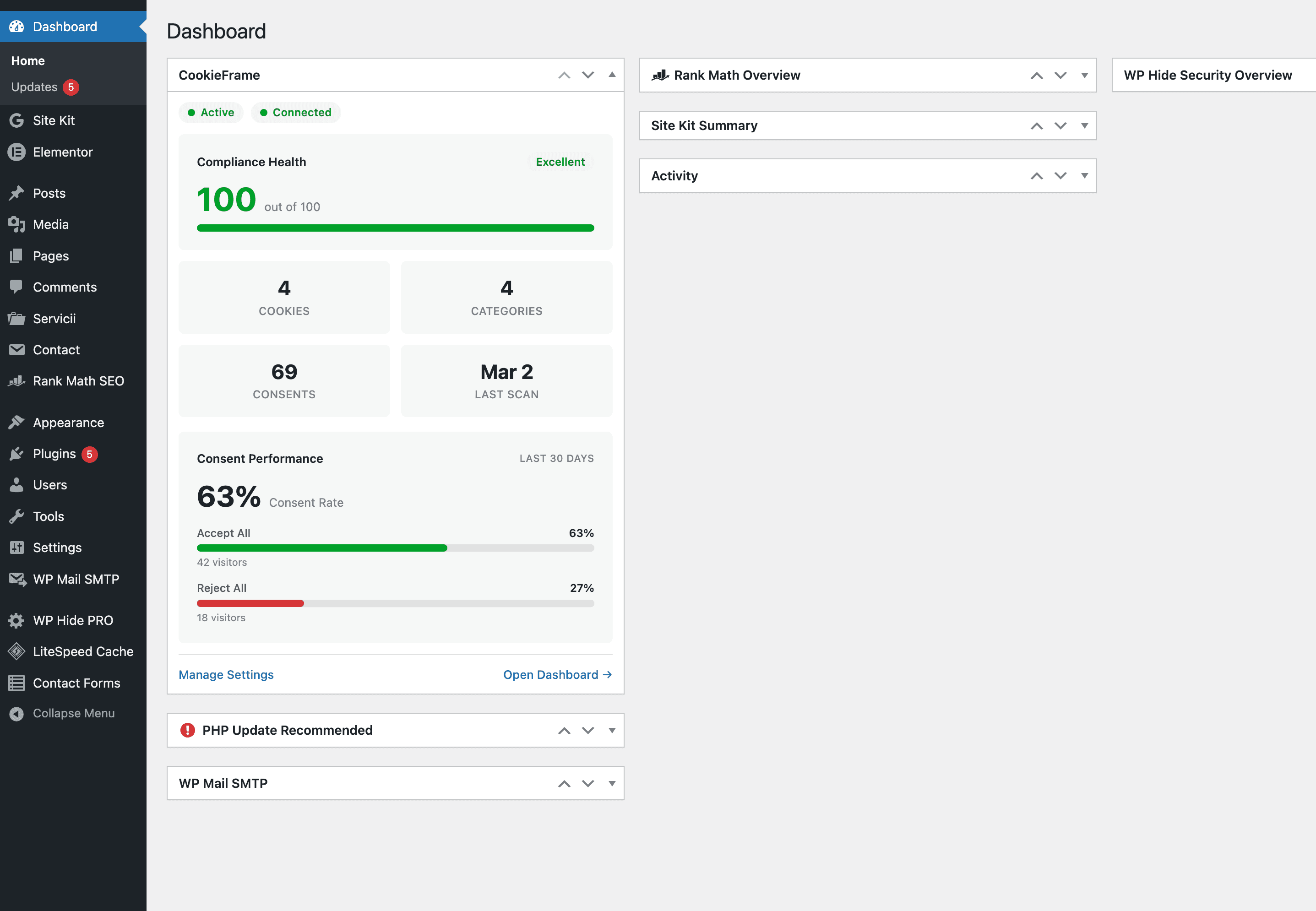
After connecting, a CookieFrame widget appears on your WordPress dashboard showing:
- Status badges — banner status (Active/Disabled) and installation status (Connected/Not installed)
- Compliance Health — your compliance score out of 100 with a color-coded bar
- Stats grid — cookies found, categories, total consents, and last scan date
- Consent Performance — consent rate, accept all vs reject all breakdown over the last 30 days
Shortcodes
CookieFrame provides two shortcodes for adding consent links anywhere on your site:
Cookie Preferences Link
[cookieframe-preferences]Renders a link that opens the cookie preferences panel. Use this in your footer, privacy page, or anywhere visitors should be able to manage their choices.
Attributes:
| Attribute | Default | Description |
|---|---|---|
text | "Cookie Settings" | Link text |
class | — | CSS class(es) to add |
id | — | HTML id attribute |
Examples:
[cookieframe-preferences text="Manage Cookies" class="footer-link"]
[cookieframe-preferences text="Cookie Preferences" id="cookie-prefs"]
Do Not Sell Link (CCPA)
[cookieframe-do-not-sell]Renders a "Do Not Sell My Personal Information" link for CCPA compliance.
Attributes:
| Attribute | Default | Description |
|---|---|---|
text | "Do Not Sell My Personal Information" | Link text |
class | — | CSS class(es) to add |
id | — | HTML id attribute |
The "Do Not Sell" link is required by CCPA for California visitors. Place it in your site footer alongside your privacy policy link.
WP Consent API
CookieFrame integrates with the WP Consent API standard. When the WP Consent API plugin is active, CookieFrame automatically:
- Registers as a consent provider
- Broadcasts consent decisions to WordPress
- Maps CookieFrame categories to WP Consent API categories
Category Mapping:
| CookieFrame | WP Consent API |
|---|---|
| Necessary | functional (always allowed) |
| Preferences | preferences |
| Analytics | statistics, statistics-anonymous |
| Marketing | marketing |
This means other WordPress plugins that support the WP Consent API (analytics, chat widgets, advertising plugins) will automatically respect your visitors' consent choices.
Caching Plugins
CookieFrame works with all WordPress caching plugins (WP Super Cache, W3 Total Cache, LiteSpeed Cache, WP Rocket, etc.). The script tag is injected directly into the page HTML via wp_enqueue_script(), so it's included in cached pages.
After activating or changing CookieFrame settings, clear your cache to ensure the updated script tag is served.
Google Consent Mode v2
CookieFrame includes built-in support for Google Consent Mode v2. When enabled in your CookieFrame Dashboard, the widget automatically updates Google consent signals based on visitor choices.
For advanced setups with Google Tag Manager, see the GTM integration guide.
Customizing the Banner
All banner customization (design, colors, layout, text, position) is done in the CookieFrame Dashboard under Design. Changes are reflected on your WordPress site automatically — no plugin update needed.
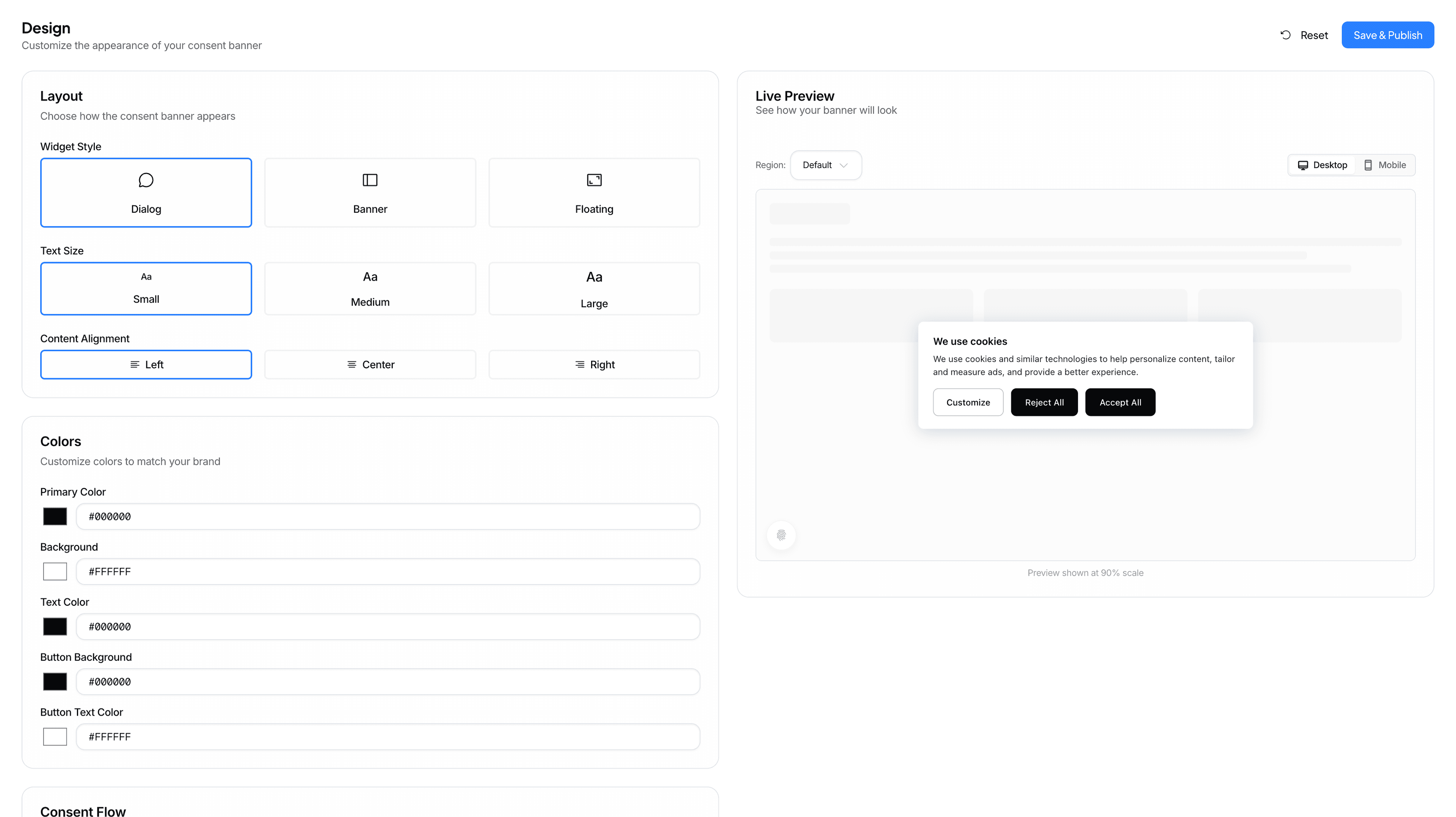
For details on design options, see the Design guide.
Troubleshooting
Banner doesn't appear after activation
- Make sure the plugin is connected (Settings > CookieFrame shows a green "Connected" badge)
- Make sure the banner is enabled (not toggled off)
- Clear your browser cache and any caching plugin cache
- Check that the page isn't in the exclusion list
- Open browser DevTools console and look for errors containing "CookieFrame"
Banner appears but looks wrong
- Check your design settings in the CookieFrame Dashboard
- Your theme's CSS may conflict — test with a default theme (e.g., Twenty Twenty-Five)
- Try clearing your cache
"Domain ID not found" error
- Verify the Domain ID is exactly 8 characters
- Make sure your domain is active in the CookieFrame Dashboard
- Check that the domain name matches your WordPress site URL
Stats not loading on settings page
- This requires an active internet connection from your server
- Check that your hosting provider doesn't block outgoing HTTP requests
- Stats are cached for 60 seconds — wait and refresh
Uninstalling
When you deactivate the plugin, your settings are preserved so you can reactivate later without reconfiguring.
When you delete the plugin (via Plugins > Delete), all CookieFrame options are removed from your WordPress database. Your CookieFrame account and data on the CookieFrame platform are not affected.
Need Help?
- Email us at [email protected]
- Visit the WordPress support forum
- Check the full documentation